

If you’ve ever stared at a ZIP file on your desktop and thought, “Can I just create a shortcut directly into this thing?” — you’re not alone. It sounds simple, right? Click, shortcut, done. But ZIP files don’t play by the same rules as normal folders, especially when WinRAR enters the picture.
Let’s break it all down in plain English, no tech headache included.
Understanding ZIP Files and Shortcuts
What Is a ZIP File?
A ZIP file is basically a compressed container. Think of it like a vacuum-sealed bag for files. Everything inside is squeezed to save space and make sharing easier. Until you unzip it, the files inside aren’t living their normal Windows life.
What Is a Shortcut in Windows?
A shortcut is a pointer. It doesn’t contain the file; it just tells Windows where the file lives. If the file moves or disappears, the shortcut breaks. Simple as that.
How WinRAR Works With ZIP Files
Supported Archive Formats
WinRAR handles ZIP, RAR, 7Z, TAR, and more. But regardless of the format, it treats archives as containers, not real folders.
File Access Behavior in WinRAR
When you open a file inside a ZIP using WinRAR, Windows often extracts it temporarily behind the scenes. That temporary behavior is the root of many shortcut problems.
Can You Directly Create a Shortcut Inside a ZIP File?
Technical Limitations Explained
Short answer? No, not in a reliable way.
Windows shortcuts require a stable file path. Files inside a ZIP don’t have one. Their “location” only exists while the archive is open.
Why Windows Shortcuts Behave Differently in Archives
A ZIP file is like a suitcase. You can’t tape a permanent address label to a shirt inside the suitcase while it’s still closed. Windows works the same way.
Methods to Create a Shortcut Related to a ZIP File
Creating a Shortcut to the ZIP File Itself
This is 100% possible and works perfectly.
Creating a Shortcut to a File Inside the ZIP
This is where things get tricky.
Shortcut After Extraction
Once extracted, the file gets a real path. Shortcut works. No drama.
Shortcut Using Temporary Paths
WinRAR sometimes opens files using temp folders. Shortcuts made this way usually break after reboot or cleanup.
Step-by-Step Guide: Creating a Shortcut to a ZIP File
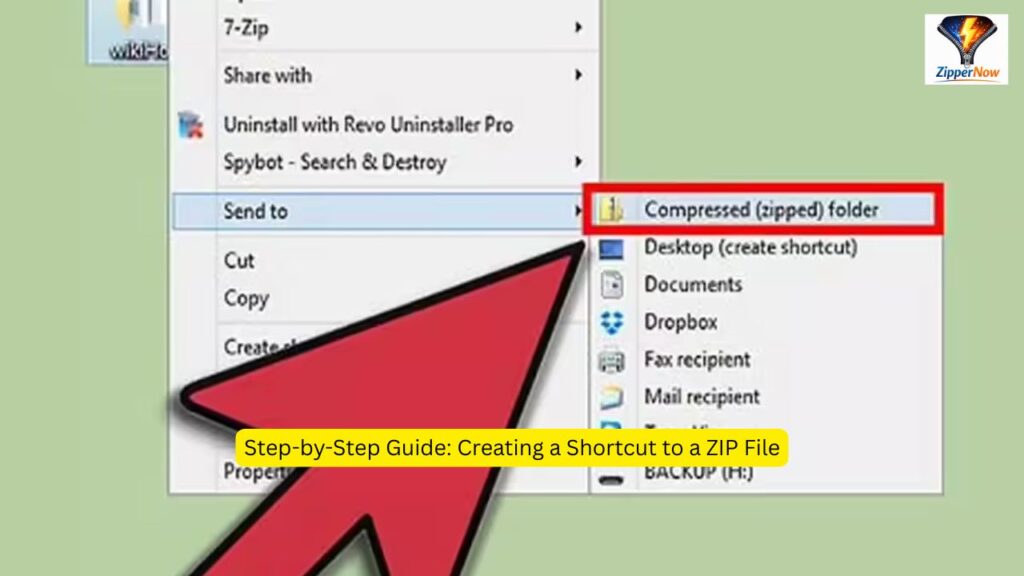
Using Desktop Right-Click Method
- Right-click the ZIP file
- Click Create shortcut
- Move the shortcut wherever you want
That’s it. Clean and reliable.
Customizing the Shortcut
You can:
- Rename it
- Change its icon
- Add command-line parameters (advanced users)
Step-by-Step Guide: Creating a Shortcut to a File Inside a ZIP
Extract-and-Link Method
- Open ZIP with WinRAR
- Extract the file to a permanent folder
- Right-click the file → Create shortcut
This is the only safe method.
Why Direct Linking Is Not Recommended
Because Windows needs a permanent address. ZIP contents don’t have one.
WinRAR Shortcut Options and Settings
WinRAR Context Menu Features
WinRAR adds options like:
- Extract Here
- Extract To Folder
- Open With WinRAR
None of these create true internal shortcuts.
“Extract To” vs “Open With” Behavior
- Extract To = permanent files
- Open With = temporary access
Shortcuts love permanence.
Common Mistakes Users Make
Expecting ZIP Files to Act Like Folders
They look like folders, but they’re not. That illusion causes most confusion.
Broken Shortcuts After Moving Files
Move the extracted file → shortcut breaks. Always move both together.
Best Practices for Working With ZIP Files and Shortcuts
When to Extract First
If you need:
- Frequent access
- Shortcuts
- Editing
Extract first. Always.
Folder Organization Tips
Create a clean folder structure:
/Archives/Extracted/Shortcuts
Future you will be grateful.
Alternative Tools and Methods
Using Windows Built-in ZIP Support
Windows Explorer handles ZIPs similarly. Same shortcut limitations apply.
Using Other Archive Managers
7-Zip, PeaZip — different UI, same rule: shortcuts need real paths.
Real-World Use Cases
Software Installers
Never run installers from inside ZIPs. Extract first.
Project File Management
Extract active projects. Archive finished ones.
Backup and Portability
ZIPs are perfect for storage, not daily access.
Security and Performance Considerations
Shortcut Risks
Shortcuts to temp files can:
- Break
- Trigger security warnings
- Fail silently
Performance Impact of Opening ZIPs Frequently
Repeated temp extraction slows things down. Extract once, work faster.
Troubleshooting Shortcut Issues
Shortcut Not Opening Correctly
Check:
- File path
- File still exists
- ZIP hasn’t moved
Permission and Path Errors
Avoid system folders and restricted directories.
Final Verdict:-
✔ Shortcut to a ZIP file → Yes
❌ Shortcut inside a ZIP → No (not reliably)
✔ Shortcut to extracted files → Best solution
ZIP files are suitcases, not houses. Unpack before you live in them.
Read also:-
Conclusion:-
So, can you create a shortcut to a ZIP file using WinRAR? Technically tempting, practically unreliable. Windows shortcuts require stability, whereas ZIP files are inherently temporary. The smart move is simple: extract first, then create shortcuts. It’s faster, safer, and frustration-free. Once you understand this, ZIP files stop being confusing and start being powerful tools.
FAQs:-
1. Can I create a desktop shortcut that opens a ZIP file in WinRAR?
Yes, absolutely. You can create a shortcut to the ZIP file itself without any issues.
2. Why does my shortcut to a file inside a ZIP stop working?
Because the file was accessed via a temporary path created by WinRAR.
3. Is there any WinRAR setting to allow internal shortcuts?
No. This is a Windows limitation, not a WinRAR setting.
4. Can I automate extraction before opening a file?
Yes, using scripts or batch files, but that’s an advanced approach.
5. What’s the safest workflow for ZIP files?
Extract → work → re-archive if needed.